How to Get More Players for Your Flikk Game: Invite Friends and Grow Your Reach
Made a game on Flikk? Here's how to send it to friends, share it on your socials and get more people playing, step by step, right in the app.
In this article
- Start with your friends
- Step 1: Add your friends on Flikk
- Step 2: Send your game to friends
- Step 3: Talk about it in your inbox
- Use the Get Players tab
- Drop it in your group chats
- Challenge people
- Post it on your socials
- Meet other creators in the Discord
- Update it, then share again
- For players: share the games you love
- Your checklist
- FAQ
You made a game on Flikk. Now you want people to play it. The good news: the fastest way to your first players is the people you already know, and Flikk has everything built in to reach them. You can send your game to friends inside the app, chat about it, and share it to WhatsApp, Instagram, TikTok and more with one tap.
This guide walks you through it step by step. Most of it is for creators, and there's a short part at the end for players who want to share the games they love.
Quick note: Flikk is our app. The screenshots come from our team's accounts.
Start with your friends
Every new game starts with zero players. Discover helps people find it, but the first few players usually come from you. Flikk says it best in its own tips: "Friends who know you are the most likely to play first."
Friends also do more than play. They tell you what's fun, beat your score, and send your game on to their friends. So before you post anywhere else, start here.
Step 1: Add your friends on Flikk
Open the Profile tab and tap Friends. At the top, tap Add friend. Everyone you add shows up in your list below.
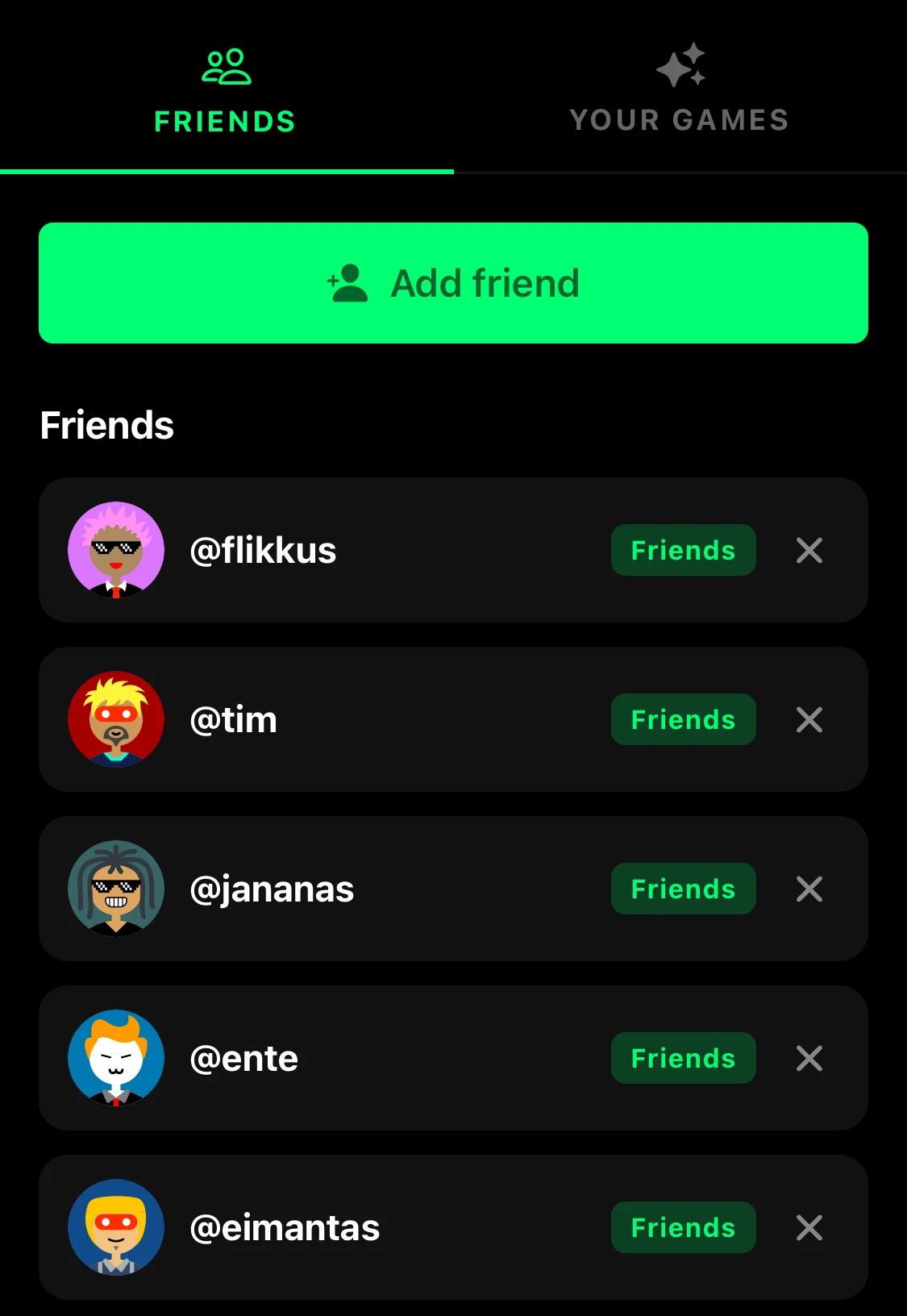
Ask your friends to get Flikk too. It's free on iOS and Android, and they can play your game with one tap. Nothing to install per game.
Step 2: Send your game to friends
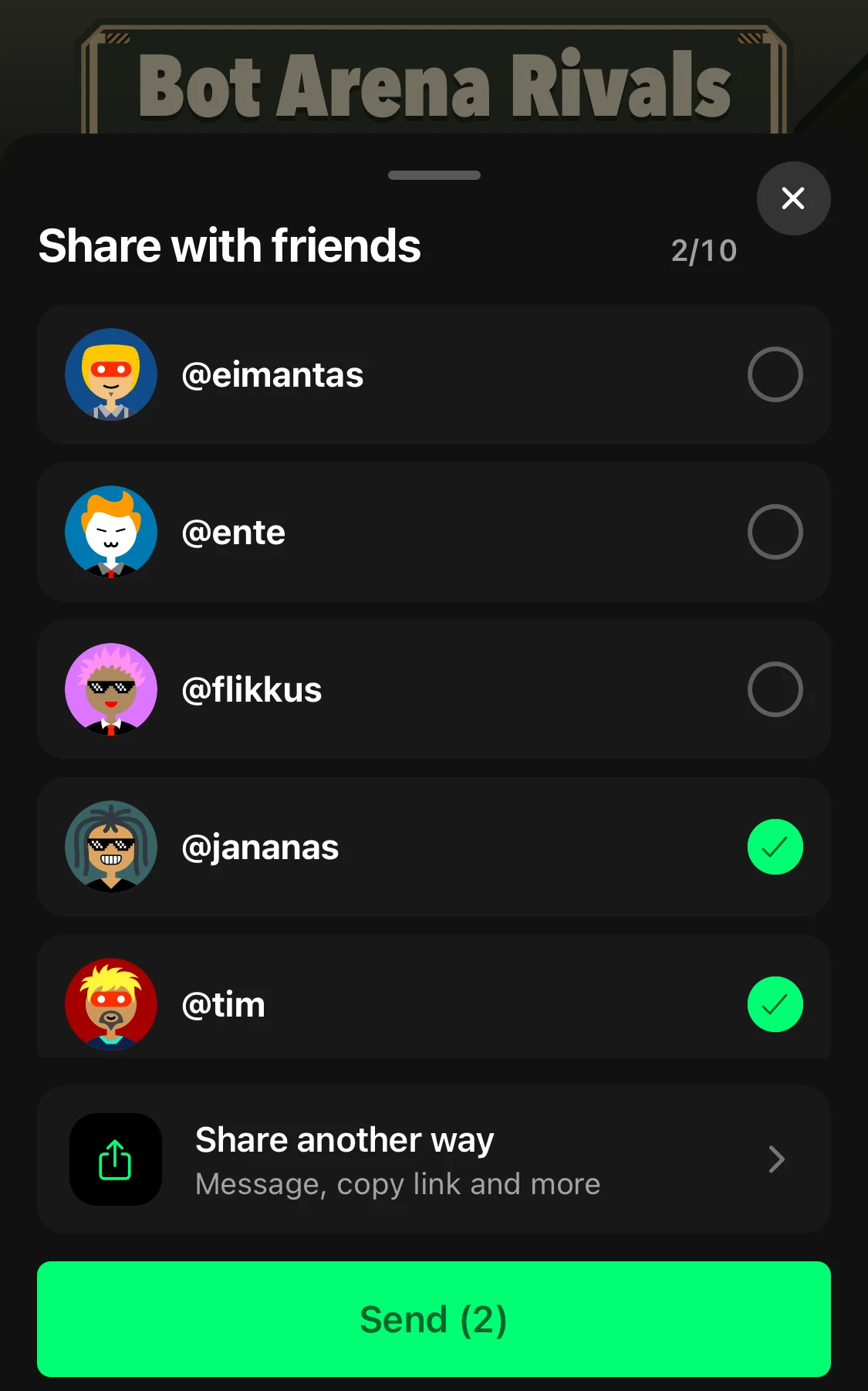
Open your game's page and tap Share. A sheet called Share with friends opens. Tick the friends you want to send it to, and tap Send.
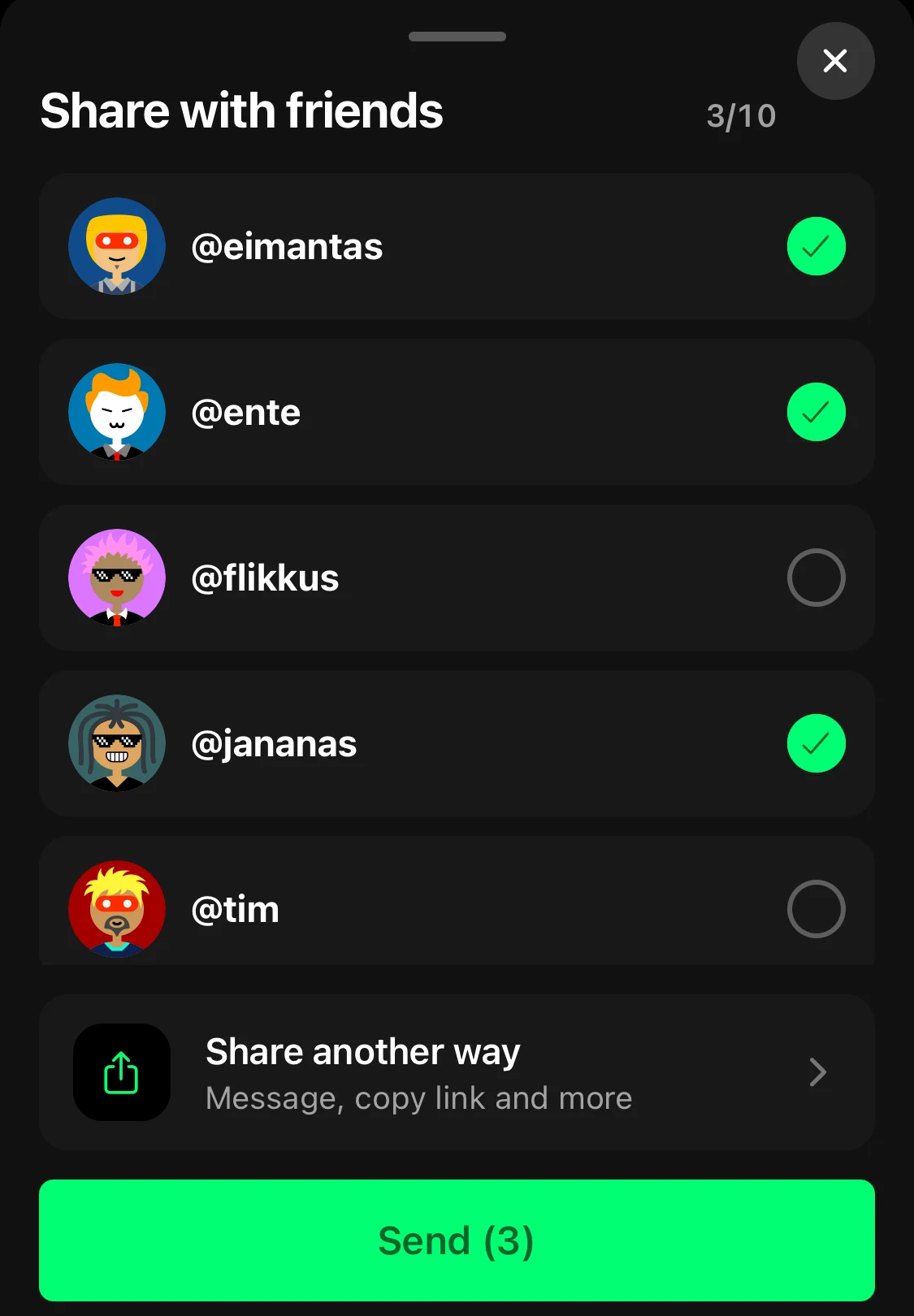
A friend who isn't on Flikk yet? Tap Share another way at the bottom. You can send it as a message, copy the link and more.
Step 3: Talk about it in your inbox
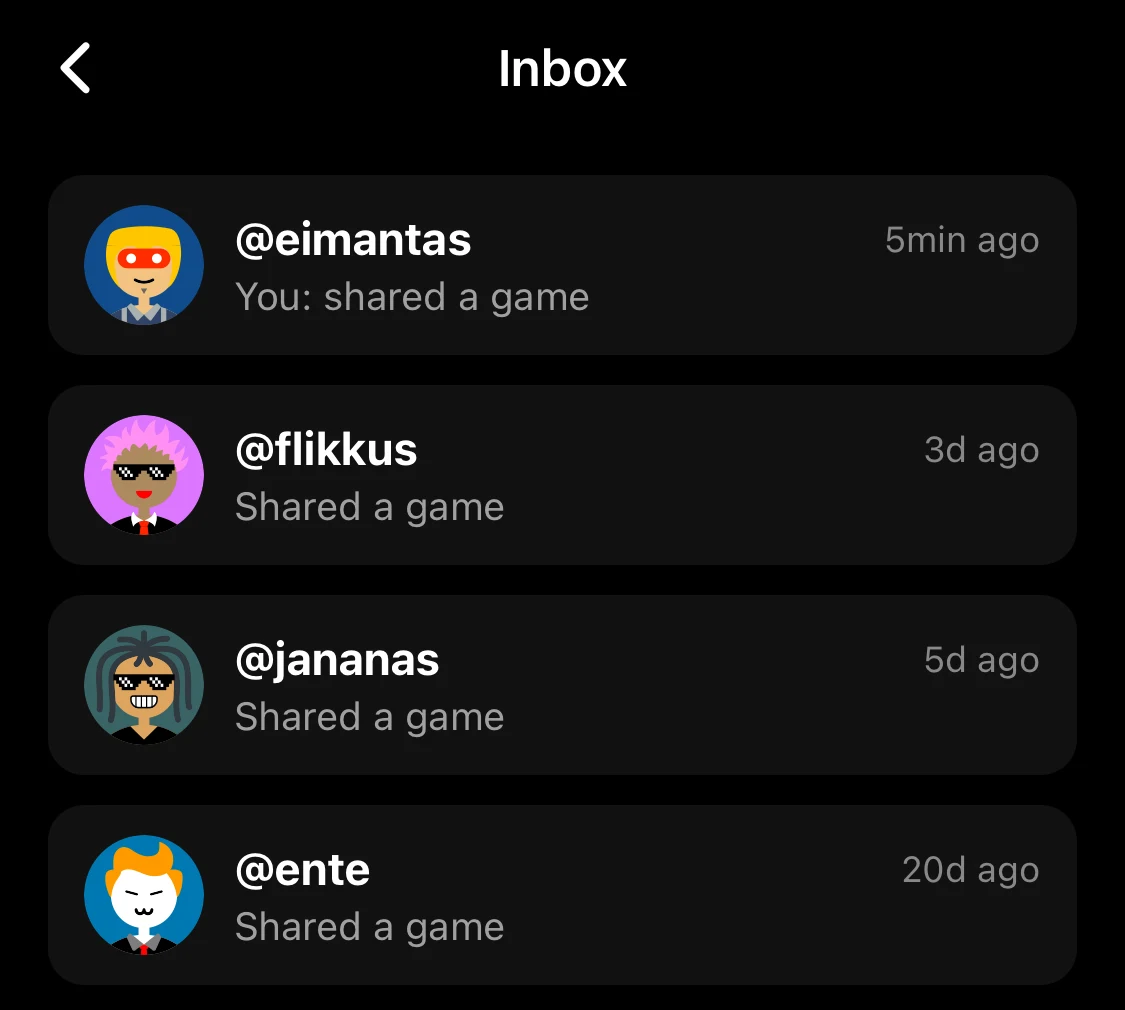
Your game lands in your friend's inbox. To see your conversations, tap the envelope icon at the top of the Profile tab.

The Inbox lists everyone you've swapped games with, newest first.
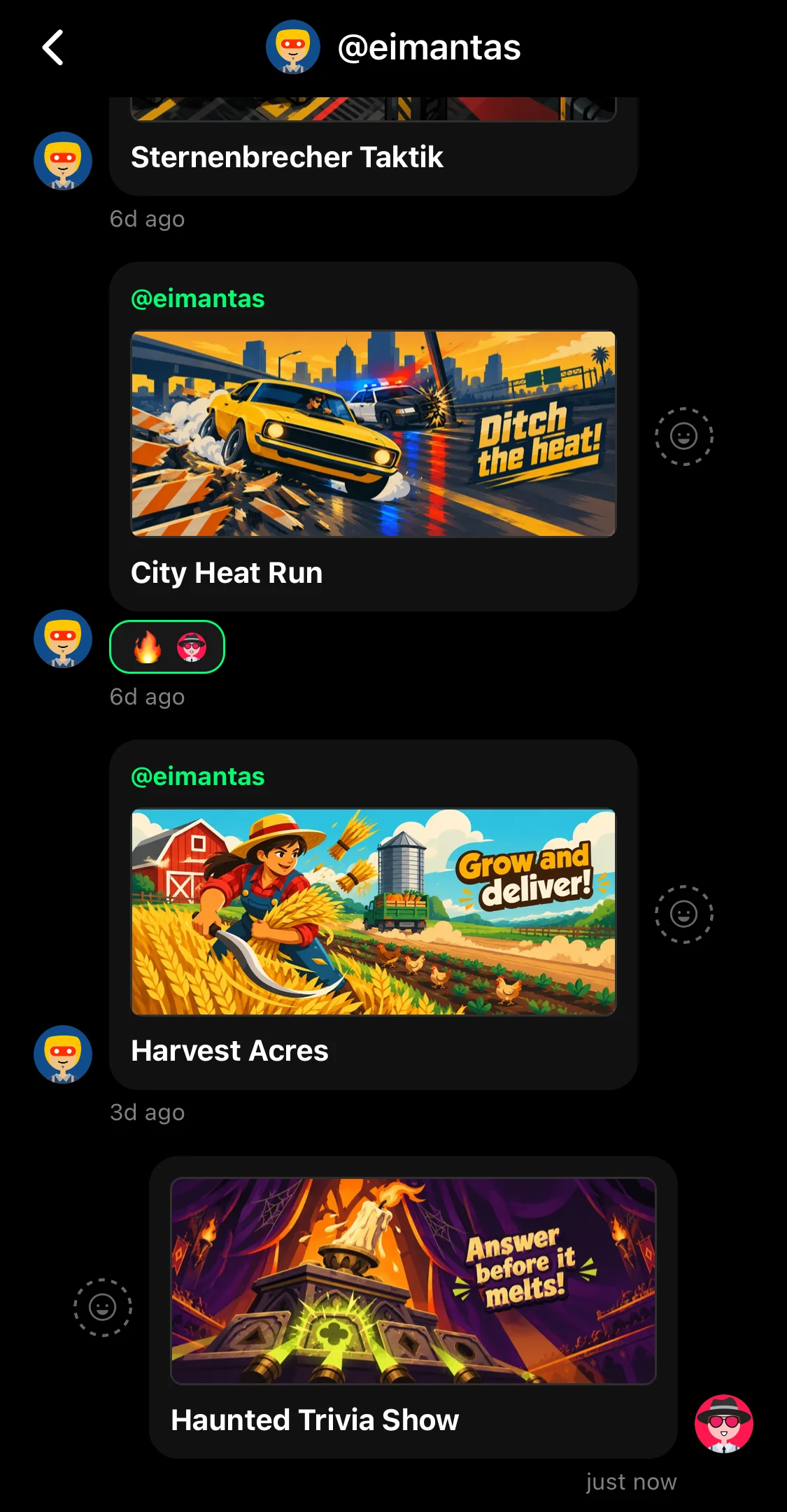
Open a chat to see every game you've sent each other, with its cover art. Friends can react to a game with an emoji, so you know right away when one lands.
Use the Get Players tab
Every game you make has a Get Players tab on its page, between Stats and Make Edits. It's your toolkit for spreading the word, and it's ready the moment your game is live.
First, Share your artwork. Flikk makes three versions of your game's art, each for a different place:
- Icon: "Square. For profile pictures and chats."
- Banner: "Wide. For posts and group chats."
- Cover: "Tall. Made for Stories and Reels."
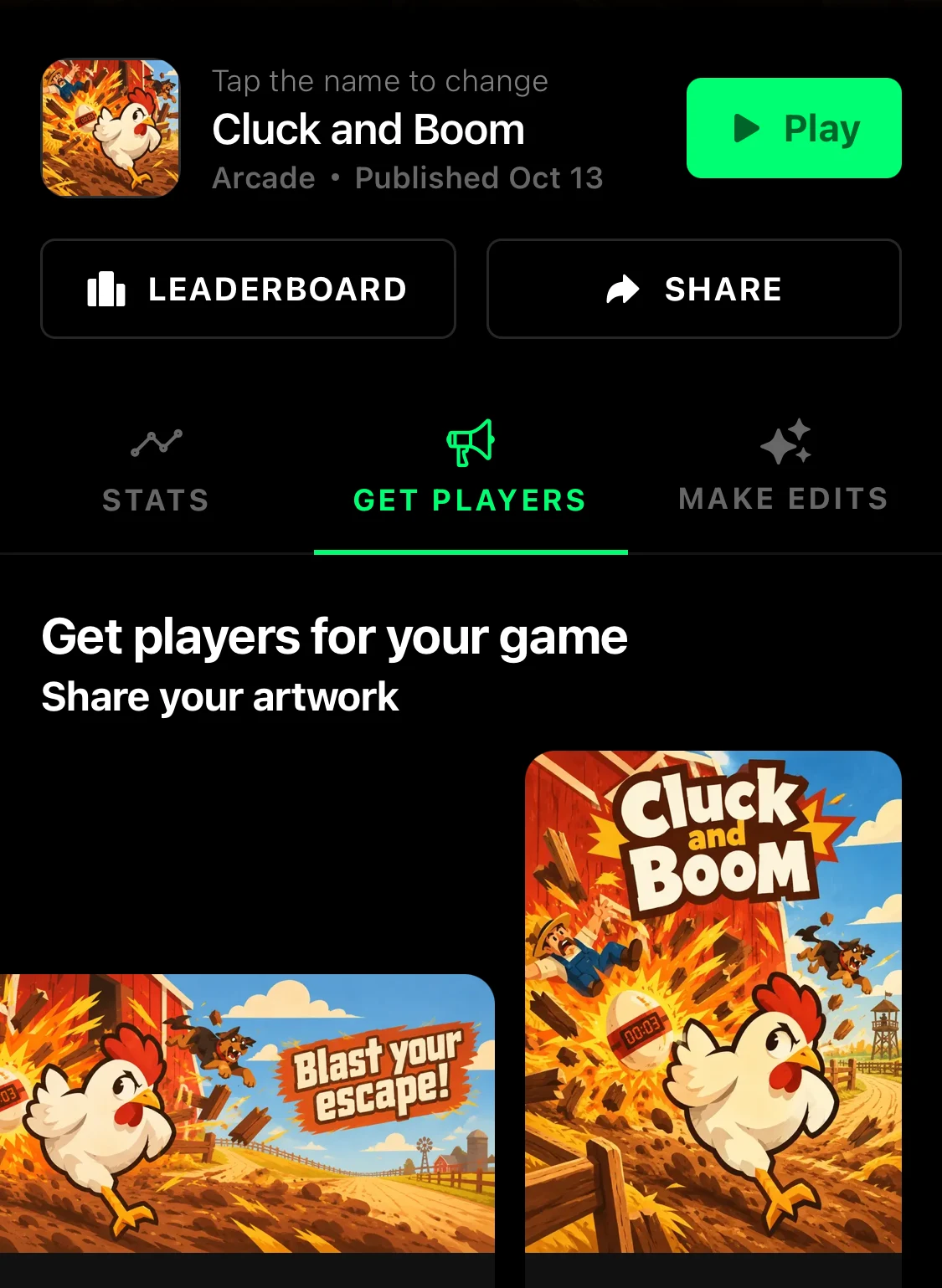
Below that, Share to sends your game straight to WhatsApp, Instagram, TikTok, X, Facebook, Telegram, Reddit or anywhere else with More. For Instagram and TikTok, your cover opens in the share sheet, and you pick the app there.
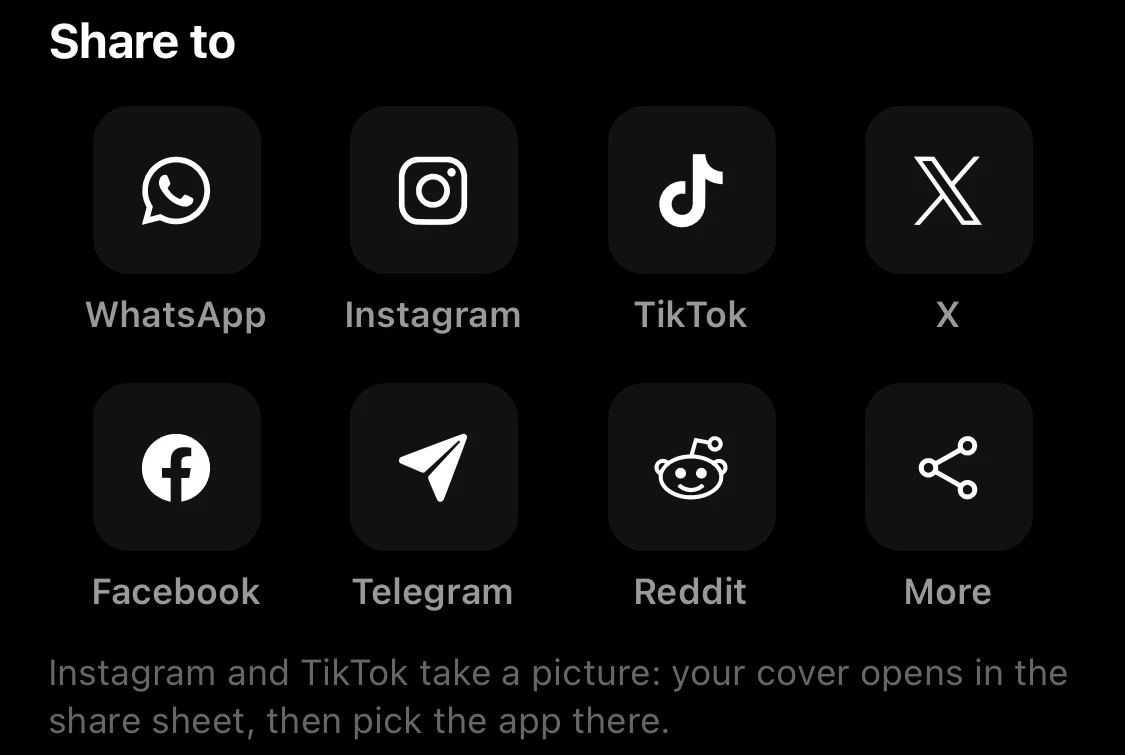
Not sure what to write? The tab has ready-to-send captions with your game's name already in them, like "I just made my own game: Cluck and Boom! It's free on Flikk. Play it and tell me what you think." Tap Share under one, and it's on its way.
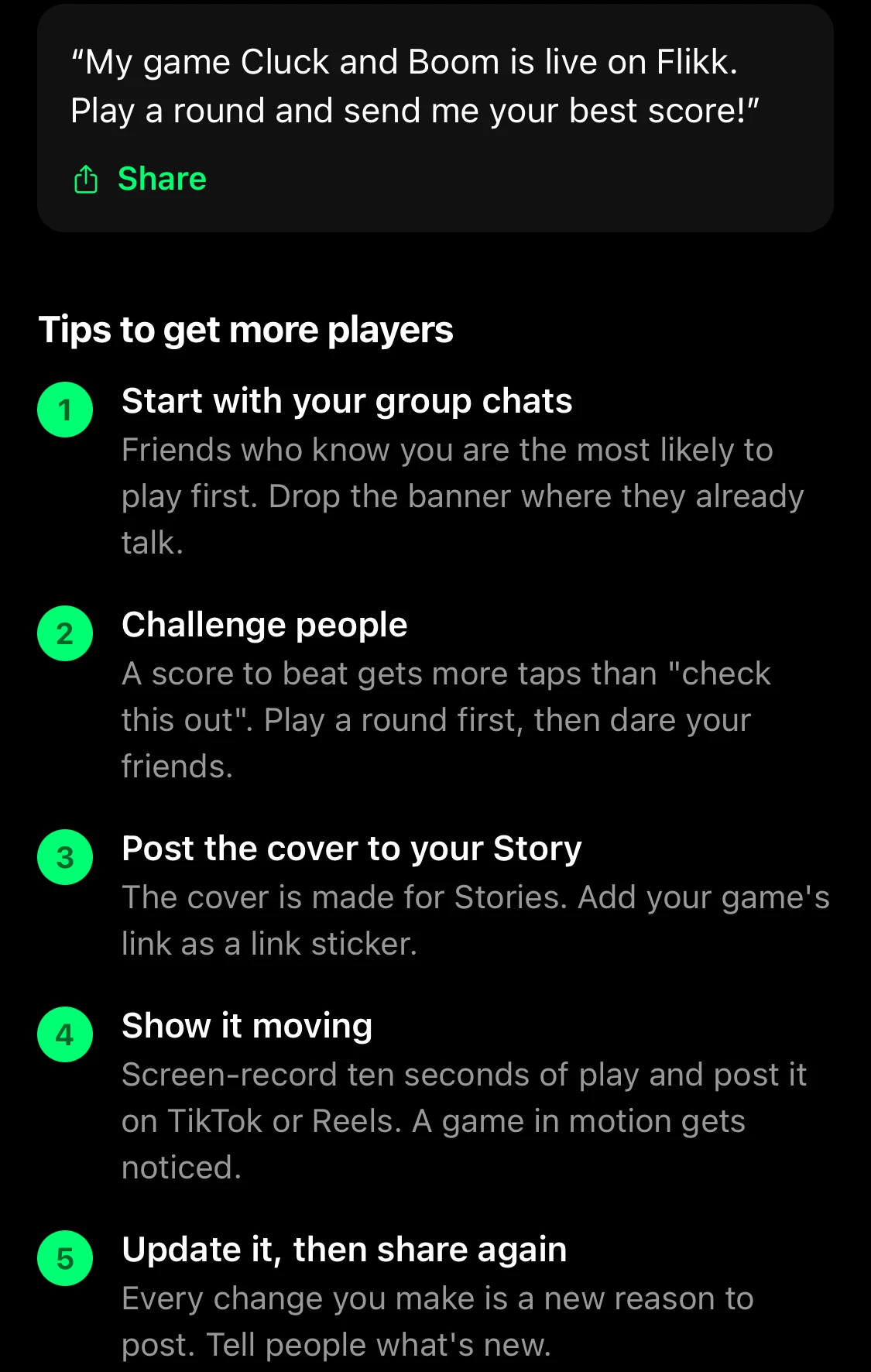
The tab ends with five tips to get more players. The next sections go through them, with a bit more detail.
Drop it in your group chats
Your group chats are where your friends already talk, so your game doesn't have to find them. Share the banner there: it's wide, so it looks good in a chat. A short line from you beats a long pitch. "I made a game, try to beat me" is enough.
Challenge people
The Get Players tab puts it simply: "A score to beat gets more taps than 'check this out'." So play a round of your own game first, then dare your friends. Every game has a Leaderboard on its page, so everyone can see who's on top.
One of the ready-made captions does this for you: "Bet you can't beat my score in Cluck and Boom. I made the game myself on Flikk." A little rivalry keeps people coming back, and friends tend to pull in more friends to settle it.
Post it on your socials
Your Story and your feed reach people beyond your contacts. Three ways to do it:
- Post the cover to your Story. It's tall and made for Stories. Add your game's link as a link sticker, so people can tap straight to it.
- Show it moving. Screen-record ten seconds of play and post it on TikTok, Instagram Reels or YouTube Shorts. A game in motion gets noticed. Pick the most fun part: a near miss, a big combo, a boss.
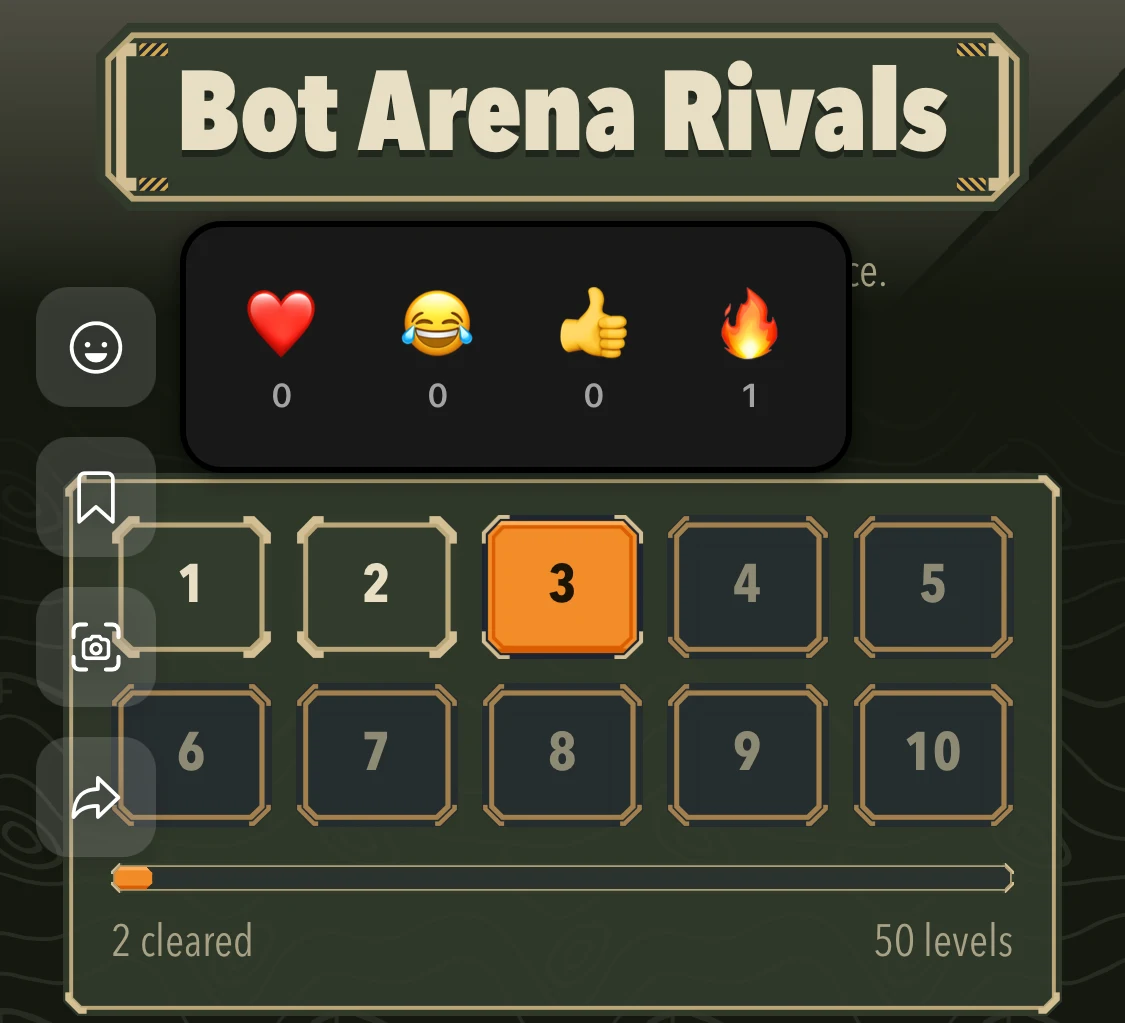
- Share a screenshot from inside the game. While you play, tap the camera button on the left side of the screen. Flikk shows your screenshot with Save and Share buttons, so you can post that perfect moment right away.
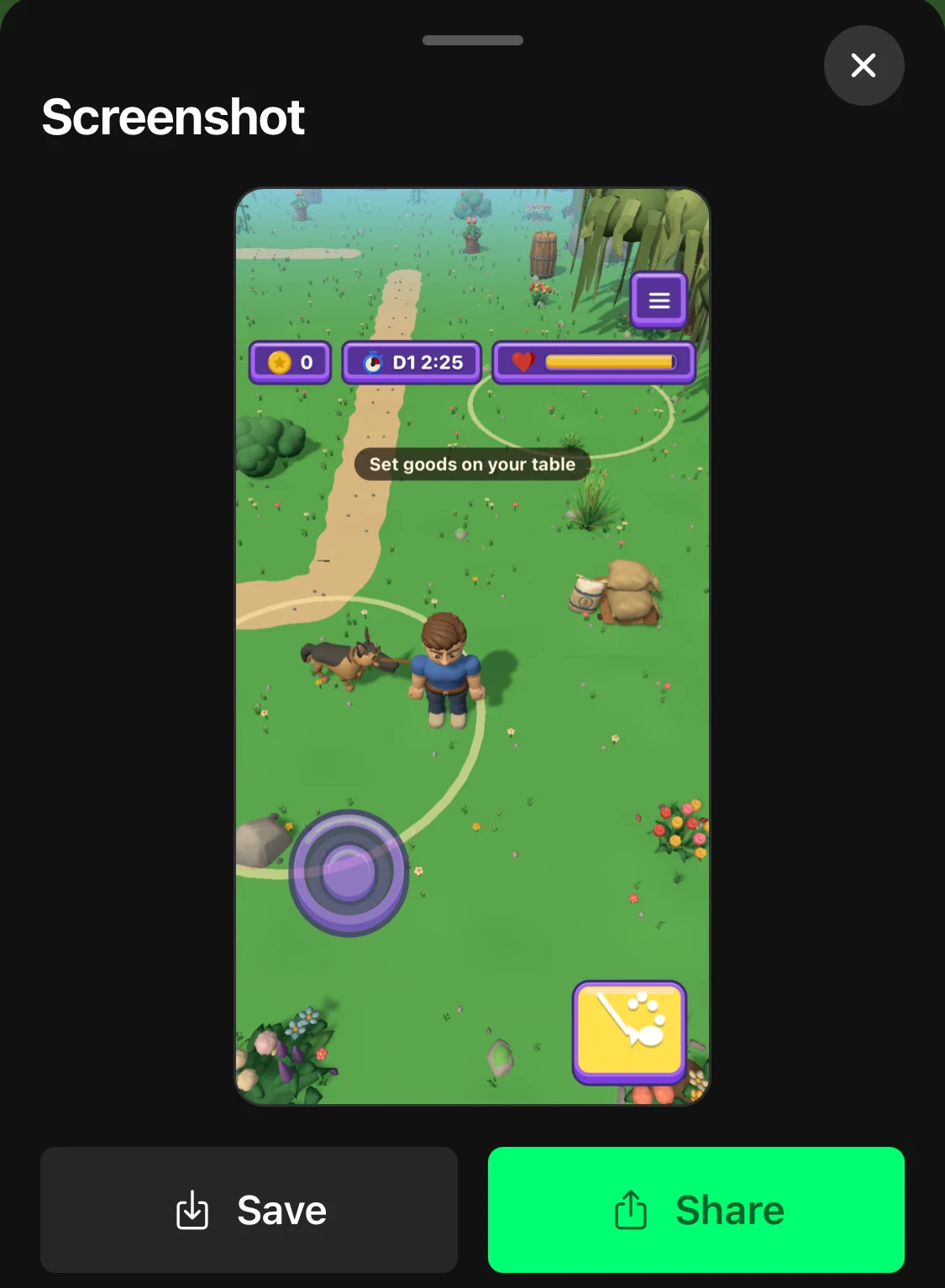
In your post, say you made the game yourself with one sentence. People love that part. Then tell them to search for the game's name in Flikk.
Meet other creators in the Discord
Once you've made a game, you can join the Flikk creator Discord: open Profile → Your Games and tap Link Discord.
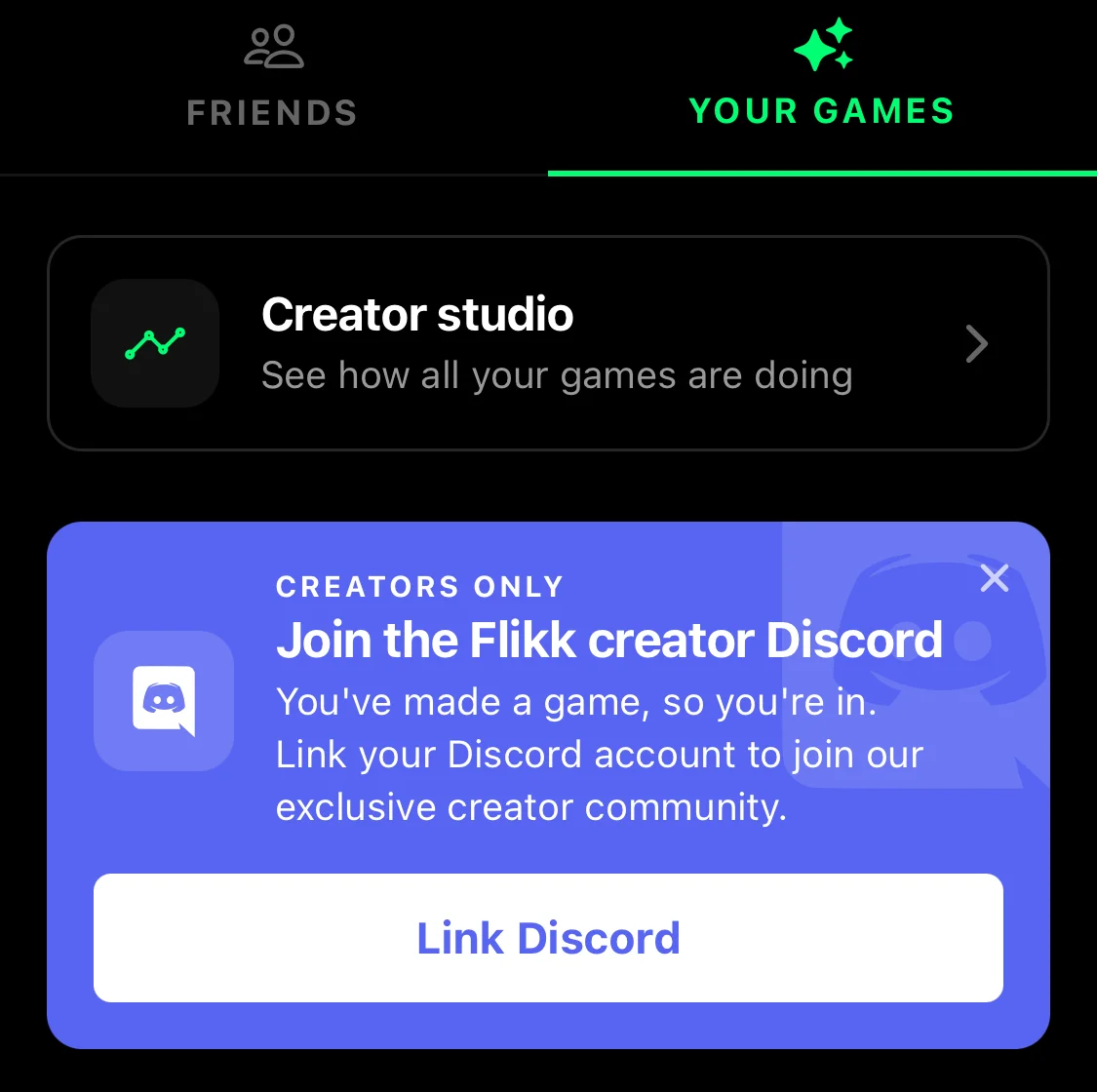
Every game you publish shows up in #showcase automatically. The creators who get the most out of the server are active in it: they play other people's games, leave real feedback, share their best moments in #clips and ask for ideas in #brainstorm. People who get feedback tend to give it back, and to try your game. More about the server in Join the Flikk Creator Discord.
Update it, then share again
The last tip in the Get Players tab is easy to forget: "Every change you make is a new reason to post." Added a boss, a new level or a night mode with Make Edits? Tell people what's new and share it again. Friends who already played have a reason to come back, and new people see it for the first time.
Need ideas for your next change? How to Grow a Game One Edit at a Time shows how small edits add up.
For players: share the games you love
You don't have to make a game to share one. Every game on Flikk, by anyone, can be sent to a friend. Open a game you like, tap the share button, and you get the same Share with friends sheet.
While you play, look at the buttons on the left side of the screen. Tap the smiley to react with ❤️, 😂, 👍 or 🔥, and the camera to take a screenshot.
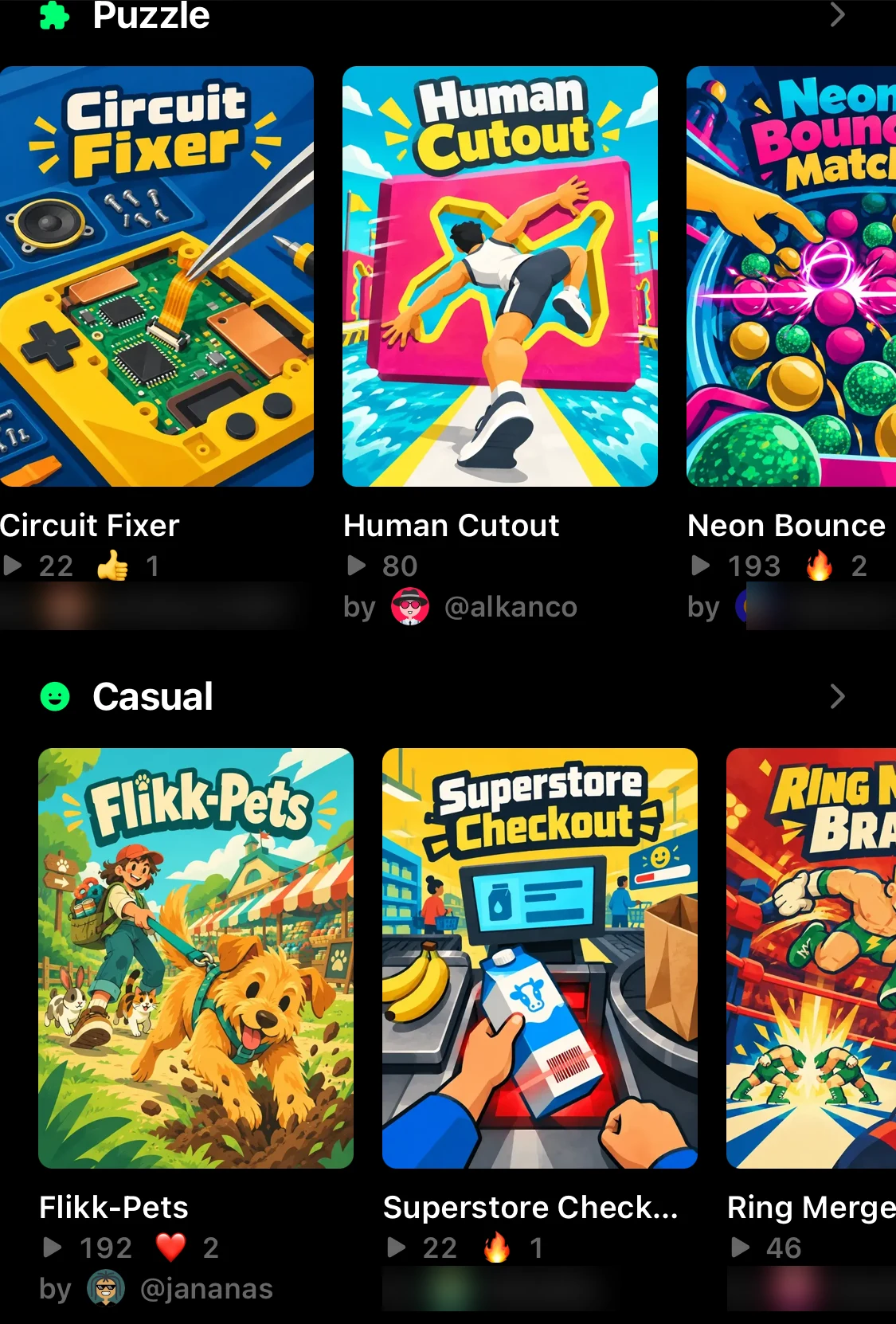
Your reactions show up on the game's card in Explore, next to its plays, so other players can see what people love. For the creator, it's a nice sign that someone enjoyed their game.
Then challenge a friend to beat your score. That's how good games travel.
Your checklist
- Add your friends: Profile → Friends → Add friend.
- Send your game: Share → Share with friends → Send.
- Open the Get Players tab and share your banner in your group chats.
- Play a round and challenge your friends to beat your score.
- Post the cover to your Story with a link sticker, and a ten-second clip on TikTok or Reels.
- Join the creator Discord and play other people's games.
- Update your game with Make Edits, then share it again.
Haven't made a game yet? Open the Create tab, describe it in one sentence, and Flikk builds it in about 15 minutes. Then come back to this list.
Download Flikk on iOS · Download Flikk on Android
FAQ
How do I add friends on Flikk?
Open the Profile tab, tap Friends, then tap Add friend. Your friends show up in the list below.
How do I send a game to a friend on Flikk?
Open the game's page and tap Share. In Share with friends, tick the friends you want and tap Send. For someone who isn't on Flikk yet, tap Share another way to send a message or copy the link.
Where are my messages on Flikk?
Tap the envelope icon at the top of the Profile tab. Your Inbox shows every conversation, and each chat shows the games you've sent each other.
Can I share someone else's game?
Yes. Every game on Flikk has a share button, so you can send any game you like to your friends, not just your own.
How do I share my Flikk game on TikTok or Instagram?
Open your game's page and go to the Get Players tab. Under Share to, tap TikTok or Instagram: your game's cover opens in the share sheet, and you pick the app there. You can also screen-record ten seconds of play and post it as a video.