Joystick, Swipe or Tap? How to Pick Controls for Your Mobile Game
The right controls can make or break a mobile game. Here's when to use taps, drags, swipes, joysticks or buttons, with real examples and prompts you can copy.
In this article
A great idea with the wrong controls feels clumsy. The same idea with the right ones feels like it reads your mind. On a phone, you have one or two thumbs and a small glass screen, so picking controls is one of the most important choices you make for your game.
This guide goes through the five main types of mobile controls, when each one fits, a real game we made with it, and a line you can copy into your prompt so Flikk builds it that way.
Quick note: Flikk is our app. The examples are games made on Flikk.
The short answer
| Your game is about… | Use | Example |
|---|---|---|
| Picking the right answer or spot | Tap | Retro Quiz Show, Pizza Fractions |
| Moving along a line or between lanes | Drag | Hungry Cat Catch |
| Running forward and dodging | Swipe | Urban Vault |
| Moving freely around a world | Joystick | Cluck and Boom |
| Moving and doing something | Joystick plus a button | Lava Leap |
Not sure? Pick the simplest one that works. Every extra control is one more thing a new player has to learn.
1. Tap: for choosing
Tapping is the easiest control there is. It's perfect when the game is about deciding, not moving: which answer, which tile, which slice.
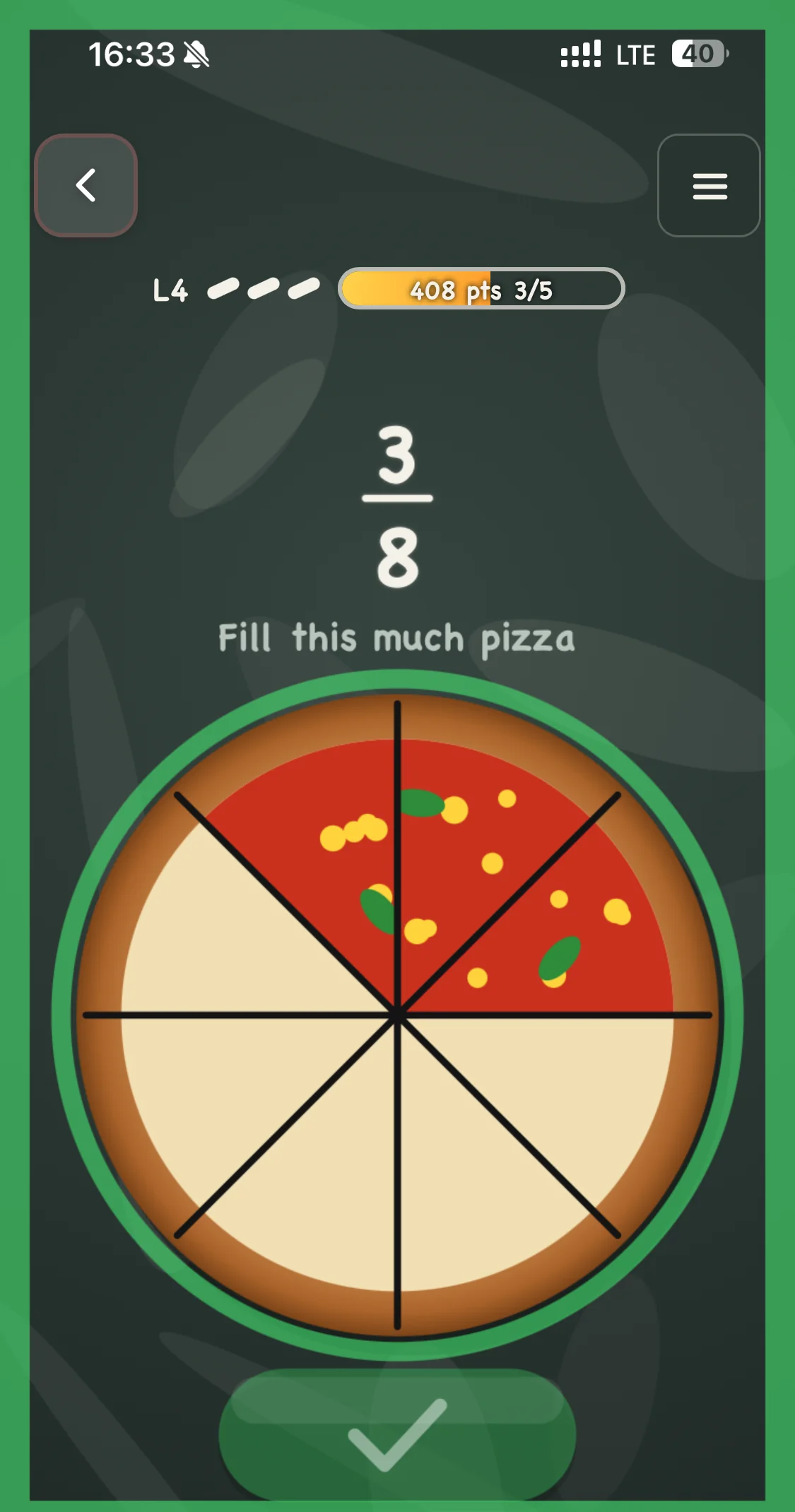
In Retro Quiz Show, a trivia game show, you tap one of four answers before the clock runs out. In Pizza Fractions, you tap pizza slices until the pizza shows the right fraction.
Copy this: "Tap one of four answers", "Tap the tiles to flip them", "Tap anywhere to jump".
Good for: quizzes, puzzles, learning games, one-tap arcade games.
2. Drag: for moving along a line
Drag-to-move means the character follows your finger while you hold it down. It's precise and feels natural, especially when the player moves left and right along the bottom of the screen.
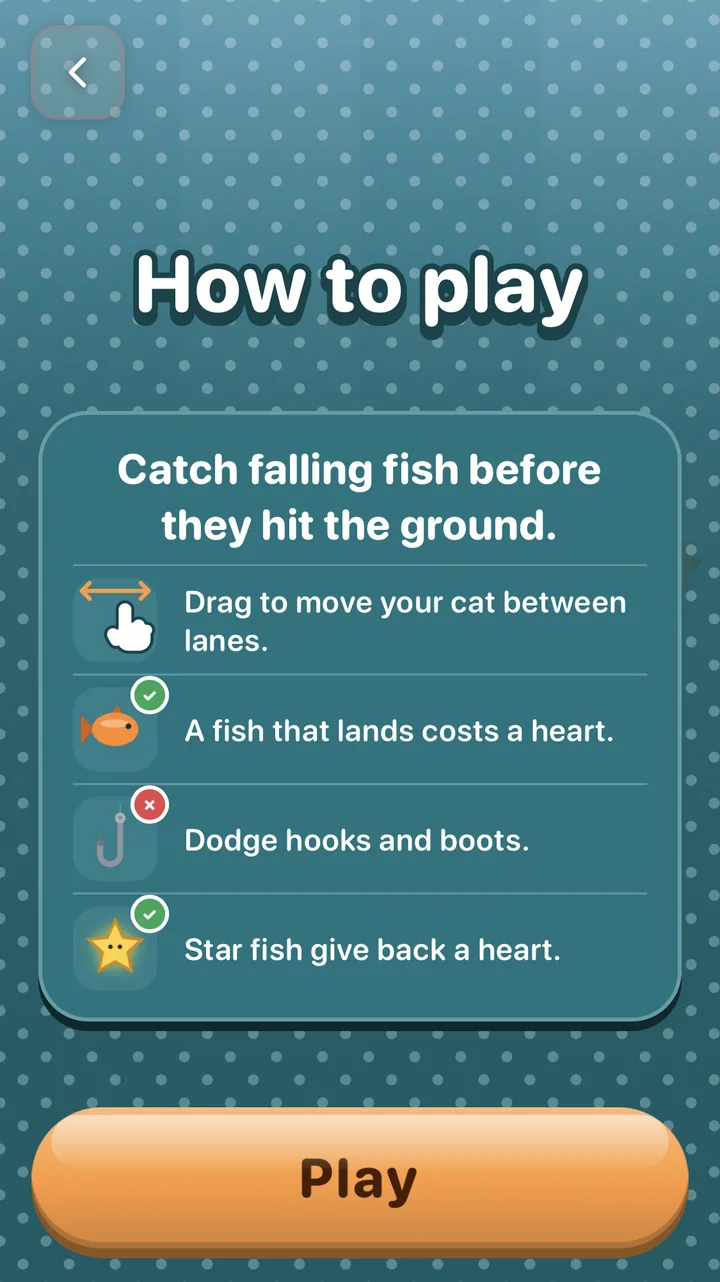
In Hungry Cat Catch, you drag the cat between lanes to catch falling fish. The game even showed it on its How to play screen, with a little hand:
Copy this: "Drag your finger to move the cat left and right", "Drag to aim, release to shoot".
Good for: catch games, paddle games, aiming and launching.
3. Swipe: for quick moves while running
A swipe is a fast flick in one direction. It's great when the game keeps moving on its own and the player only reacts: dodge left, jump up.
In Urban Vault, a rooftop runner, the plan said: "Swipe left and right to steer your runner and tap to jump."
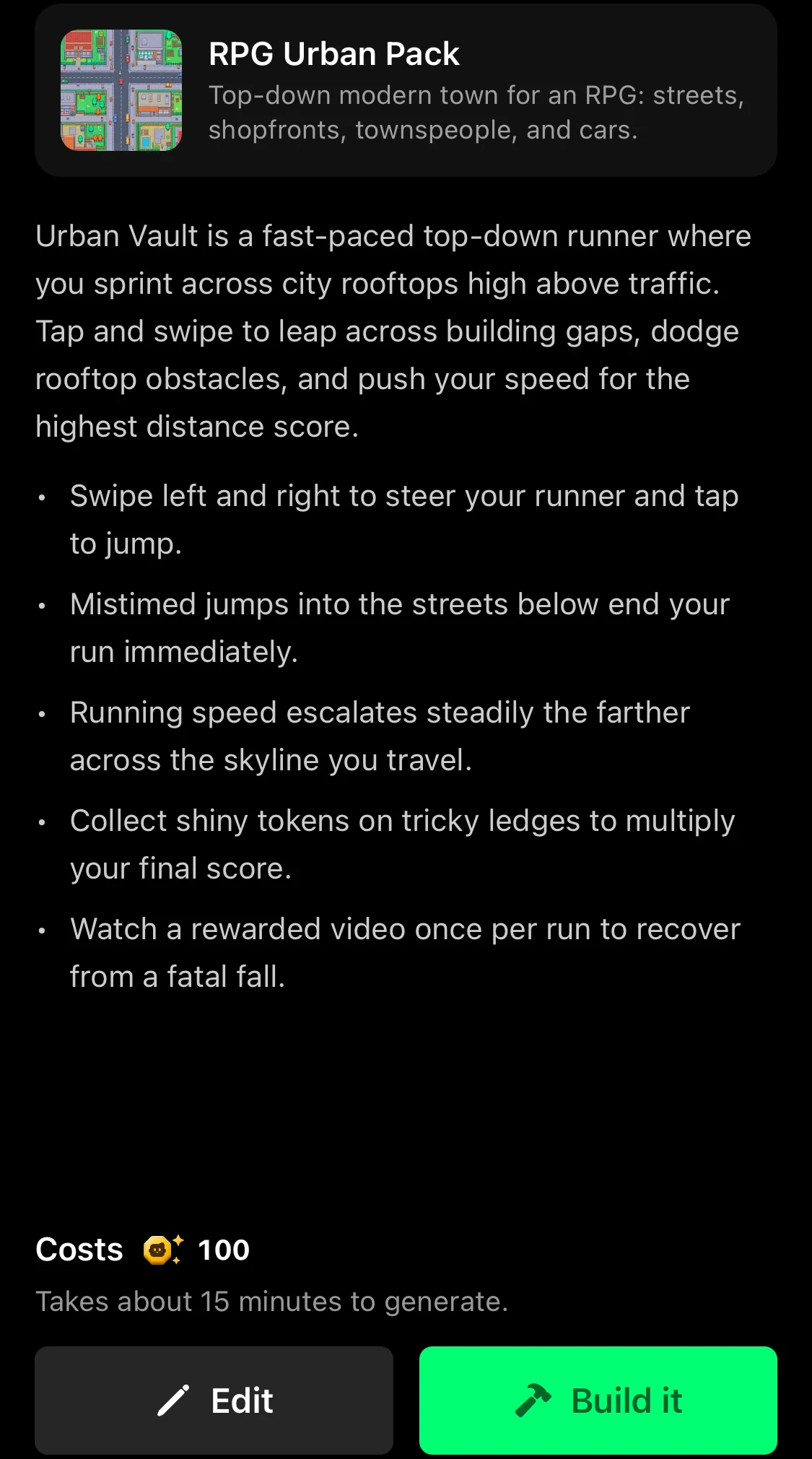
Copy this: "Swipe left and right to change lanes, swipe up to jump".
Good for: endless runners, lane games, anything where the screen scrolls by itself.
4. Joystick: for moving freely
When the player should walk anywhere, in any direction, use a joystick. Flikk builds them reliably, and there are three kinds:
- Fixed: always in the same spot.
- Floating: appears wherever your thumb touches the screen. The most comfortable on a phone.
- Following: moves along when your thumb drifts too far.
In Cluck and Boom, a 3D game we made on Flikk, a floating joystick appears where your thumb lands, and an EGG button sits in the other corner.
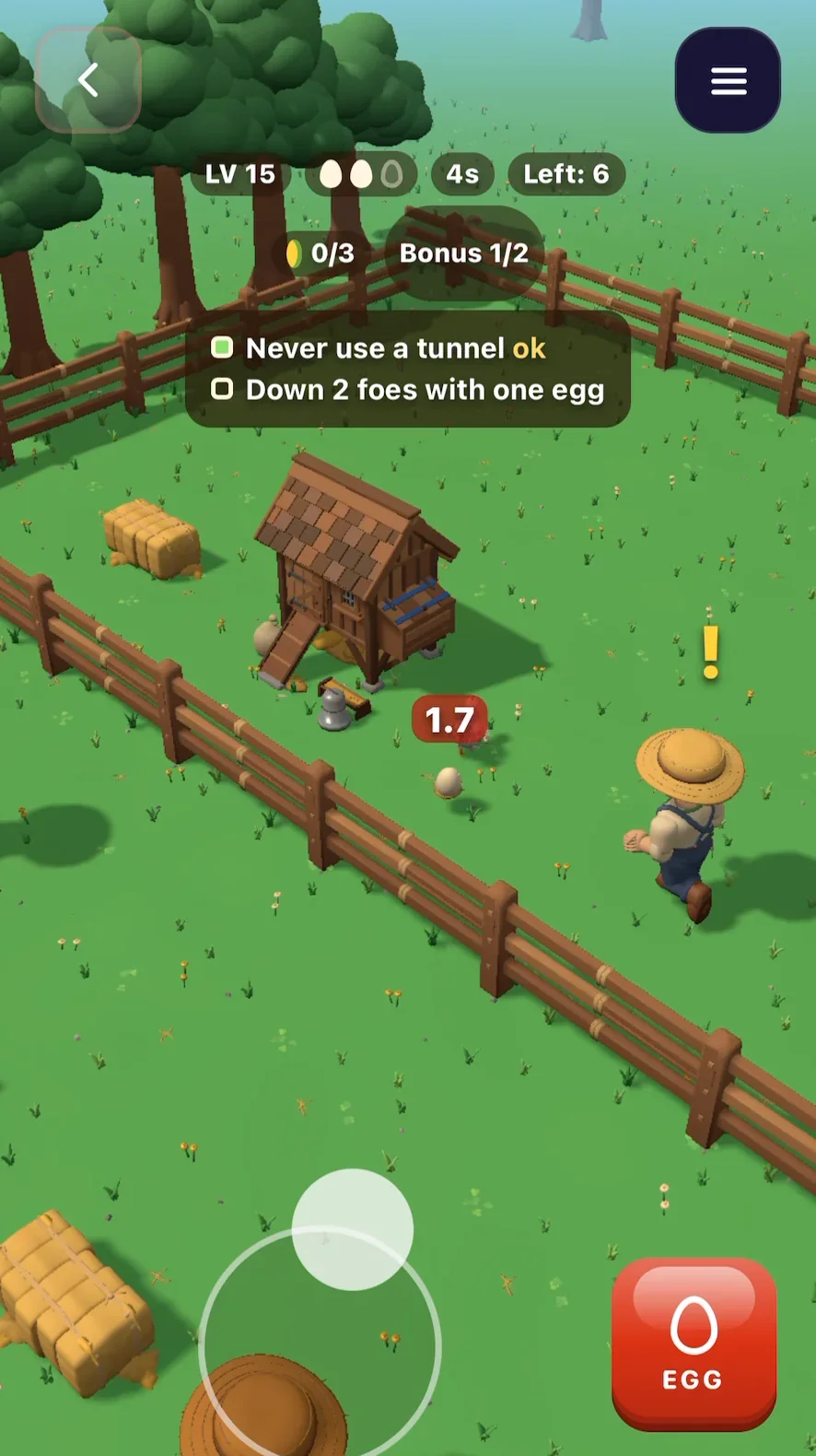
Copy this: "A floating joystick to move". Need to aim too? Flikk can also build two joysticks, one to move and one to aim, and it works in portrait.
Good for: top-down games, exploring, 3D worlds, shooters.
5. Joystick plus a button: for moving and acting
Many games need two things at once: move, and jump, shoot or use a power. Then put a joystick under the left thumb and one or two buttons under the right.
For Lava Leap, our 3D platformer, we asked for "a floating joystick to move and a button to jump", and that's what we got:
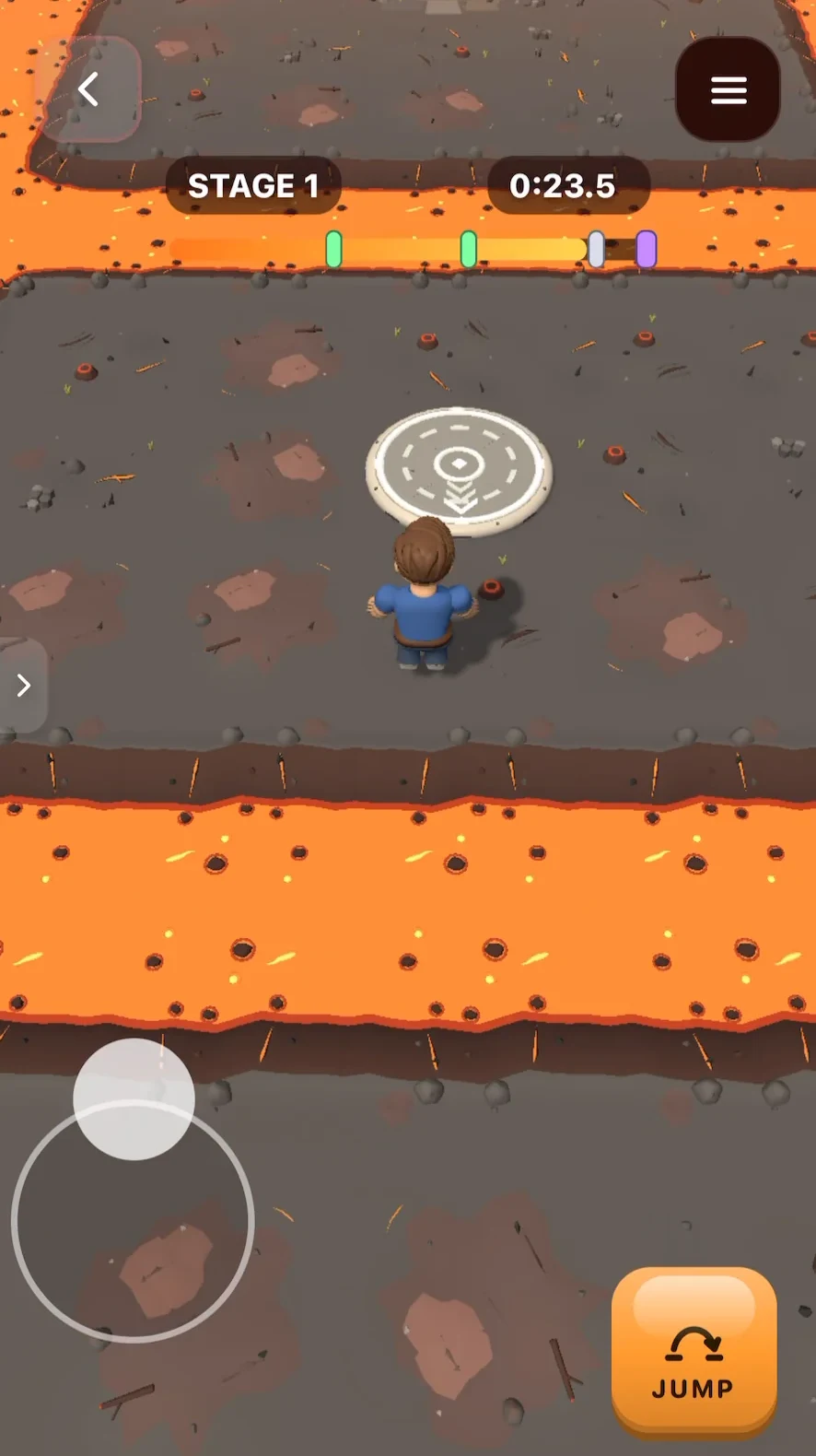
Copy this: "A floating joystick to move and a button to jump". Keep it to one or two buttons. More than that gets crowded on a phone.
Good for: platformers, obstacle courses, action games.
Want something unusual? Describe it exactly
You're not limited to the five types. For a racing game, we asked for a steering wheel "in the bottom middle of the screen" and a special move: "If the player steers the wheel 120 degrees really fast, the car turns 180 degrees." Both made it into the plan:
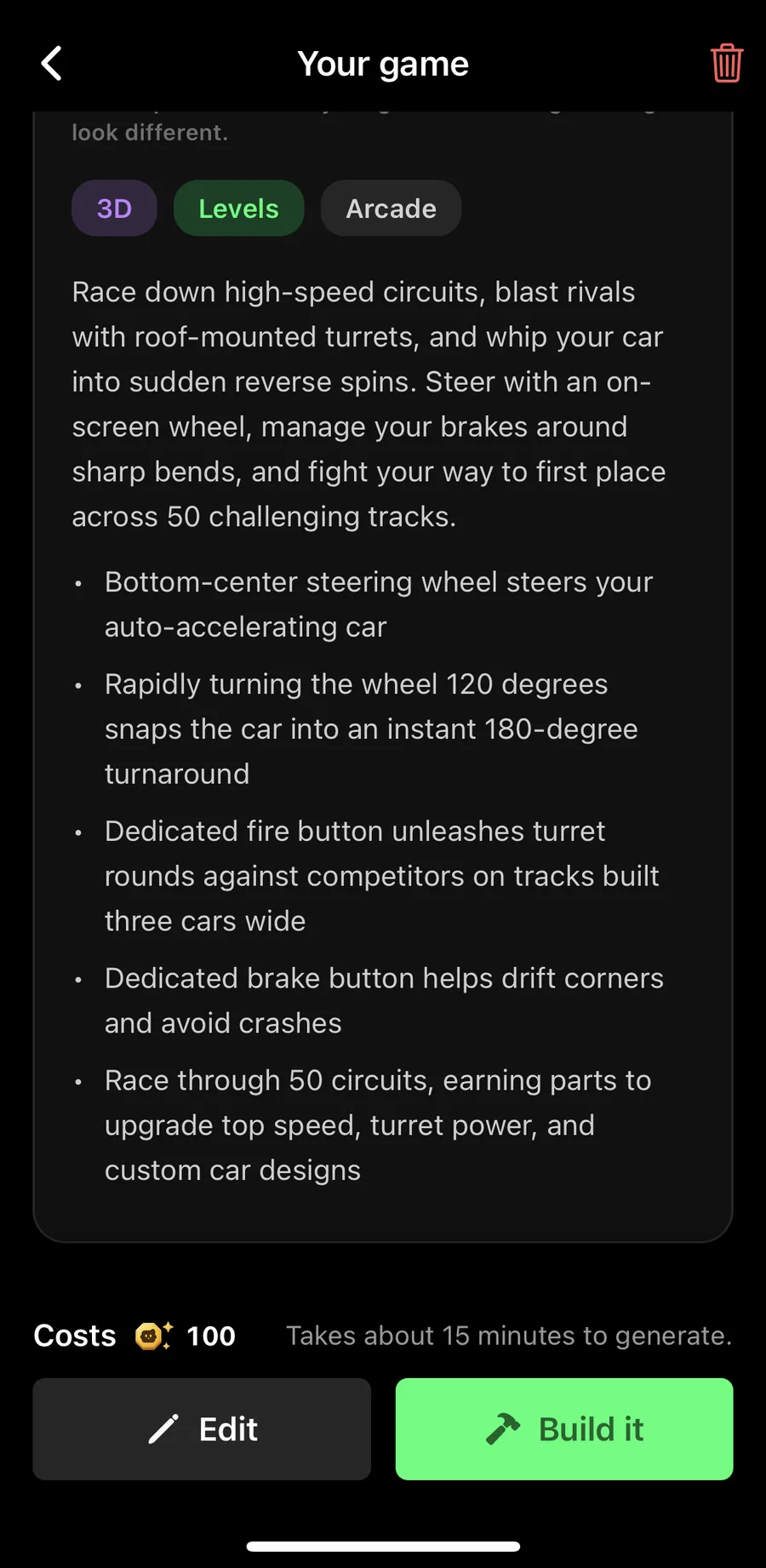
The trick: say where the control is on the screen, what it does, and anything special about how you use it.
What doesn't work (yet)
- Tilt controls. Steering by tilting the phone isn't supported. Flikk tells you right away: "Flikk can't make that one." Use a joystick, swipes or drag instead.
- Landscape. Every Flikk game is portrait, so design for a tall screen and one or two thumbs.
And one thing that does work and makes any control feel better: vibration. Ask for "Make the phone vibrate when the player gets hit" and every hit becomes something you feel.
3 rules for good mobile controls
- Thumbs, not fingers. Put controls at the bottom, where thumbs rest, and keep the top of the screen for the game.
- Fewer is better. If one tap can do it, don't add a button.
- Say it in the prompt. If you don't mention controls, Flikk picks them for you. Usually that's fine, but if you have something in mind, say it.
Want the full list of control terms, from split-screen to multi-touch? Our mobile game glossary has them, each with a sentence to copy. For 3D cameras and controls, see the 3D game glossary.
Download Flikk on iOS · Download Flikk on Android
FAQ
What are the best controls for a mobile game?
It depends on what the player does. Tap for choosing, drag for moving along a line, swipe for quick moves while running, a joystick for moving freely, and a joystick plus a button for moving and acting at the same time. Pick the simplest one that works.
Can I make a game with a joystick on Flikk?
Yes. Flikk reliably builds fixed, floating and following joysticks, and even two joysticks for moving and aiming. Say it in your prompt, like "a floating joystick to move".
Can I make a tilt-controlled game on Flikk?
Not yet. Tilt controls aren't supported, and Flikk tells you before you spend anything. A joystick, swipes or drag-to-move are good alternatives.
Can Flikk games use vibration?
Yes. Ask for it in your prompt or in Make Edits, like "Make the phone vibrate when the player gets hit".
What if Flikk picks controls I don't like?
Change them with Make Edits. Say what you want instead, like "Replace the swipe controls with a floating joystick". The edit takes about 5 minutes.